Adaptive Cards are used to create Actionable Messages in Outlook to extend the functionality of email. They enable users to take quick actions without leaving Outlook.
In this unit, you’ll learn what’s possible and required with Outlook Actionable Messages.
Let’s start this unit with an example scenario that demonstrates how developers can use Adaptive Cards as Actionable Messages in Outlook.
Example scenario of Outlook Actionable Messages
In this scenario, Adaptive Cards are used to send Outlook Actionable Messages to users to process group membership requests.
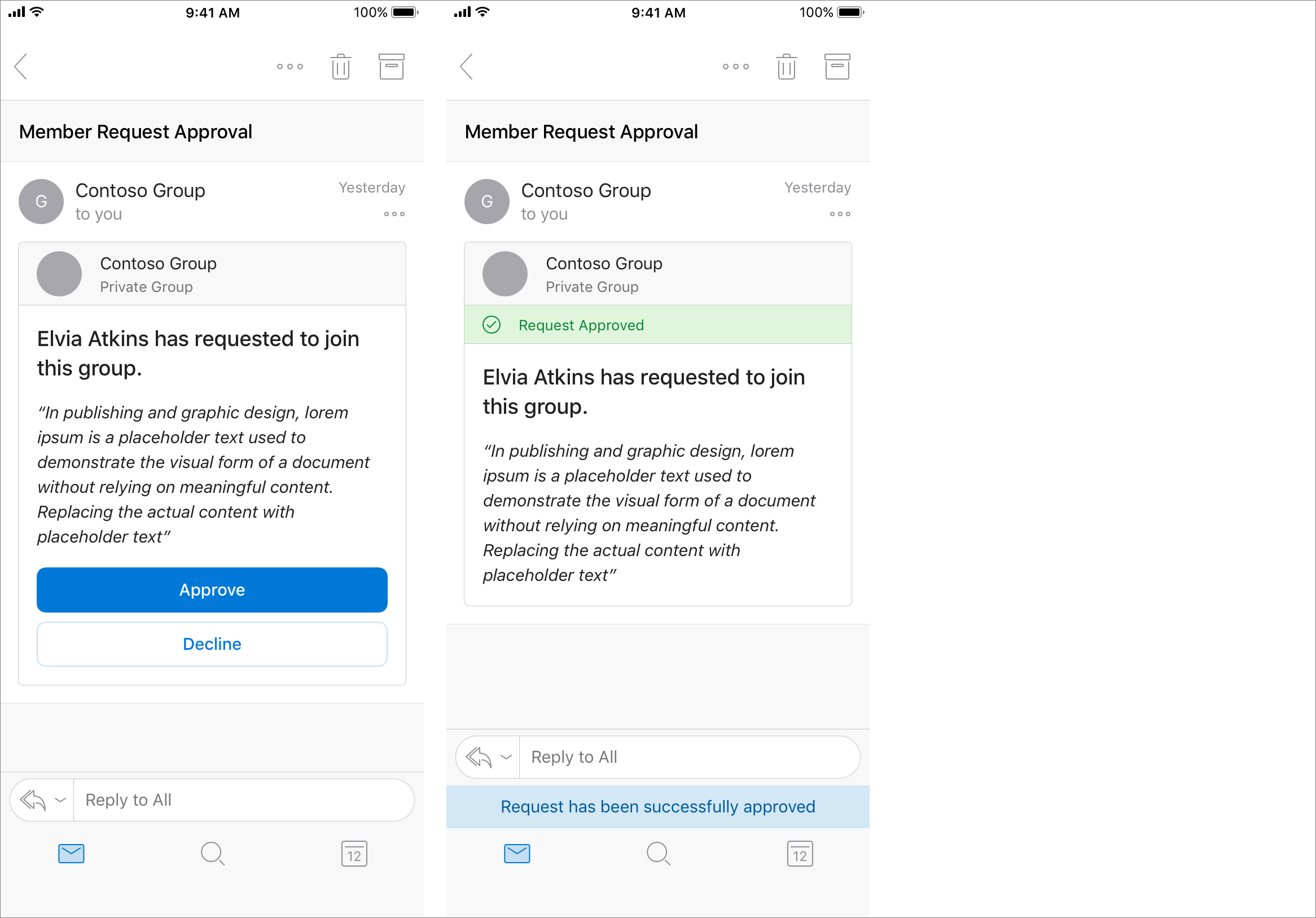
A Contoso employee submits a request to join a private Office 365 group. Office 365 sends an Actionable Message to the person who owns the group to approve or decline the request. The card included in the message contains all the information the approver might need to quickly understand who submitted the request and any message they included to explain their request. It also includes Approve and Decline actions that can be taken right from Outlook. The owner approves the request, and the card updates to indicate the outcome.
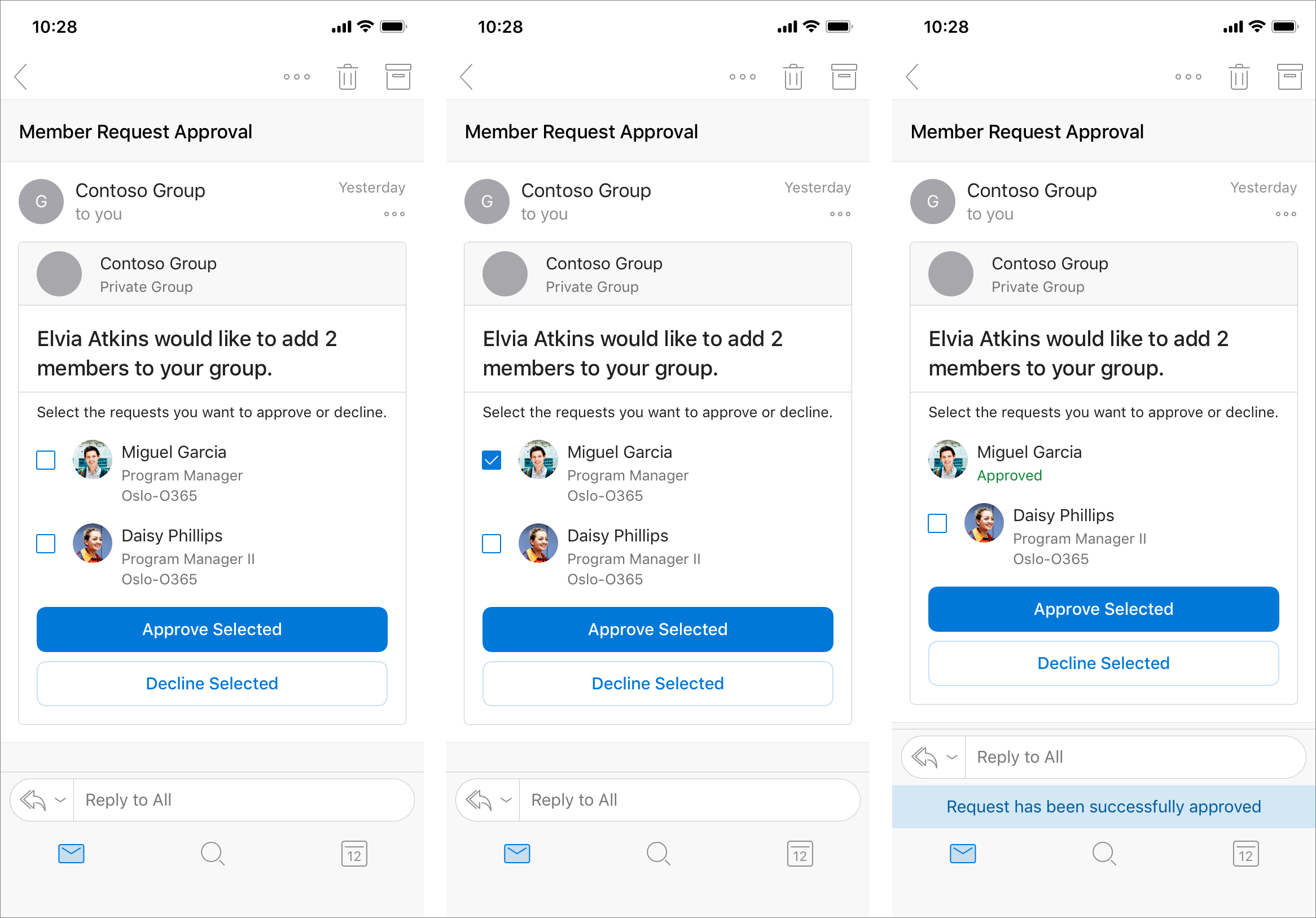
The new member of the group submits a second request to add their team members to the group. Office 365 sends an Actionable Message to the owner with clear information about who submitted the request and the new members to add. The recipient can approve all, some, or none of the proposed new members. The owner approves one new member, and the card updates to indicate the outcome. The approved member is no longer selectable, while the remaining member remains selectable.
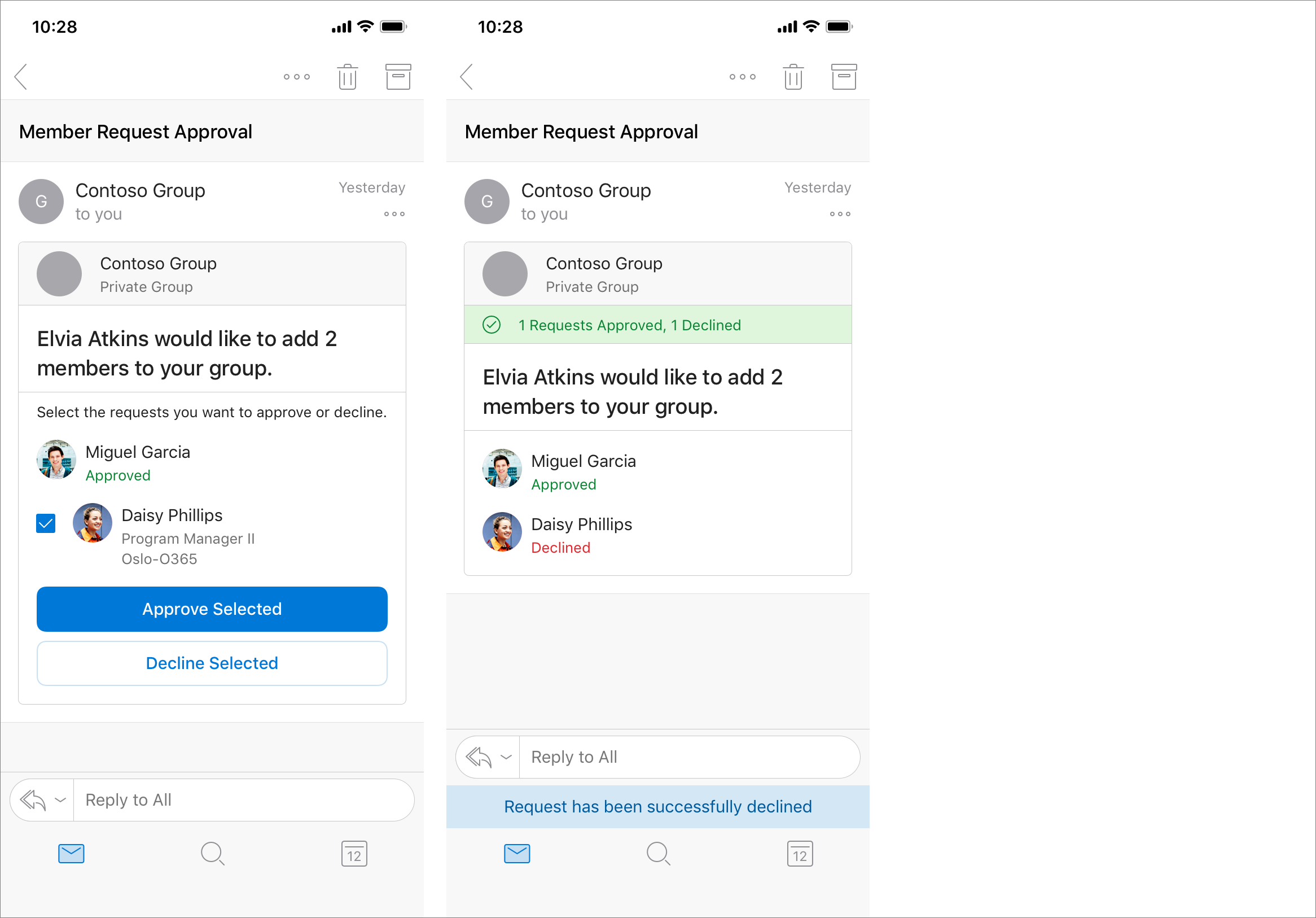
The owner declines the other requested new member, and the card updates to indicate the outcome. Both members are no longer selectable, and the action buttons are removed.
Notice the important points in this scenario:
- the group owner can process the group membership request decisions entirely through email
- each time the group owner does an action, the card is refreshed without receiving extra emails
- the group owner can do all necessary actions without leaving Outlook
Outlook Actionable Messages with Adaptive Cards
Whether you’re filling out a survey, approving an expense report, or updating a CRM sales opportunity, Actionable Messages enable you to take quick actions right from within Outlook. Developers can now embed actions in their emails or notifications, elevating user engagement with their services and increasing organizational productivity.
Office 365 provides two solutions to enhance productivity with Outlook Actionable Messages: Actionable Messages via email, and Actionable Messages via Office 365 Connectors.
Note
This module is only addressing Actionable Messages.
Outlook introduced the Actionable Message card format that over time has evolved into the Adaptive Card format. Microsoft now recommends developers should use the Adaptive Card format for Actionable Messages as it’s the only format supported on Outlook on iOS and Android.
Cards are included in an HTML email sent to users by including a <script type="application/adaptivecard+json"> element in the <head> element of the email.
The message body of the email should still be placed in the <body> element.
Sender verification for Actionable Messages with Adaptive Cards
Securing actionable email is simple and easy. There are two phases within the end-to-end experience that impose security requirements on your service when supporting Actionable Messages with Office 365.
Let’s first explore the sending phase of Actionable Messages
In the send phase, the pre-requisites for your service to send Actionable Messages are as follows:
- If you’re using actionable email, you’ll need to enable sender verification. This doesn’t apply to connector messages.
- Your service must be registered with Microsoft.
- The Action URL must support HTTPS.
https://lernix.com.my/oracle-peoplesoft-training-courses-malaysia
Leave a Reply