Category: Uncategorized

  • Use delta tables with streaming data

    All of the data we explored up to this point has been static data in files. However, many data analytics scenarios involve streaming data that must be processed in near real time. For example, you might need to capture readings emitted by internet-of-things (IoT) devices and store them in a table as they occur. Spark processes batch data and streaming data in the same way, enabling streaming data to be processed in real-time using the same API.

    Spark Structured Streaming

    A typical stream processing solution involves:

    • Constantly reading a stream of data from a source.
    • Optionally, processing the data to select specific fields, aggregate and group values, or otherwise manipulating the data.
    • Writing the results to a sink.

    Spark includes native support for streaming data through Spark Structured Streaming, an API that is based on a boundless dataframe in which streaming data is captured for processing. A Spark Structured Streaming dataframe can read data from many different kinds of streaming source, including:

    • Network ports
    • Real time message brokering services such as Azure Event Hubs or Kafka
    • File system locations.

     Tip

    For more information about Spark Structured Streaming, see Structured Streaming Programming Guide in the Spark documentation.

    Streaming with Delta tables

    You can use a Delta table as a source or a sink for Spark Structured Streaming. For example, you could capture a stream of real time data from an IoT device and write the stream directly to a Delta table as a sink. You can then query the table to see the latest streamed data. Or you could read a Delta as a streaming source, enabling near real-time reporting as new data is added to the table.

    Using a Delta table as a streaming source

    In the following PySpark example, a Delta table is created to store details of Internet sales orders:

    SQLCopy

    %%sql
    CREATE TABLE orders_in
    (
            OrderID INT,
            OrderDate DATE,
            Customer STRING,
            Product STRING,
            Quantity INT,
            Price DECIMAL
    )
    USING DELTA;
    

    A hypothetical data stream of internet orders is inserted into the orders_in table:

    SQLCopy

    %%sql
    INSERT INTO orders_in (OrderID, OrderDate, Customer, Product, Quantity, Price)
    VALUES
        (3001, '2024-09-01', 'Yang', 'Road Bike Red', 1, 1200),
        (3002, '2024-09-01', 'Carlson', 'Mountain Bike Silver', 1, 1500),
        (3003, '2024-09-02', 'Wilson', 'Road Bike Yellow', 2, 1350),
        (3004, '2024-09-02', 'Yang', 'Road Front Wheel', 1, 115),
        (3005, '2024-09-02', 'Rai', 'Mountain Bike Black', 1, NULL);


    To verify, you can read and display data from the input table:

    PythonCopy

    # Read and display the input table
    df = spark.read.format("delta").table("orders_in")
    
    display(df)
    

    The data is then loaded into a streaming DataFrame from the Delta table:

    PythonCopy

    # Load a streaming DataFrame from the Delta table
    stream_df = spark.readStream.format("delta") \
        .option("ignoreChanges", "true") \
        .table("orders_in")


     Note

    When using a Delta table as a streaming source, only append operations can be included in the stream. Data modifications can cause an error unless you specify the ignoreChanges or ignoreDeletes option.

    You can check that the stream is streaming by using the isStreaming property which should return True:

    PythonCopy

    # Verify that the stream is streaming
    stream_df.isStreaming
    

    Transform the data stream

    After reading the data from the Delta table into a streaming DataFrame, you can use the Spark Structured Streaming API to process it. For example, you could count the number of orders placed every minute and send the aggregated results to a downstream process for near-real-time visualization.

    In this example, any rows with NULL in the Price column are filtered and new columns are added for IsBike and Total.

    PythonCopy

    from pyspark.sql.functions import col, expr
    
    transformed_df = stream_df.filter(col("Price").isNotNull()) \
        .withColumn('IsBike', expr("INSTR(Product, 'Bike') > 0").cast('int')) \
        .withColumn('Total', expr("Quantity * Price").cast('decimal'))
    

    Using a Delta table as a streaming sink

    The data stream is then written to a Delta table:

    PythonCopy

    # Write the stream to a delta table
    output_table_path = 'Tables/orders_processed'
    checkpointpath = 'Files/delta/checkpoint'
    deltastream = transformed_df.writeStream.format("delta").option("checkpointLocation", checkpointpath).start(output_table_path)
    
    print("Streaming to orders_processed...")
    

     Note

    The checkpointLocation option is used to write a checkpoint file that tracks the state of the stream processing. This file enables you to recover from failure at the point where stream processing left off.

    After the streaming process starts, you can query the Delta Lake table to see what is in the output table. There might be a short delay before you can query the table.

    SQLCopy

    %%sql
    SELECT *
        FROM orders_processed
        ORDER BY OrderID;
    

    In the results of this query, order 3005 is excluded because it had NULL in the Price column. And the two columns that were added during the transformation are displayed – IsBike and Total.

    OrderIDOrderDateCustomerProductQuantityPriceIsBikeTotal
    30012023-09-01YangRoad Bike Red1120011200
    30022023-09-01CarlsonMountain Bike Silver1150011500
    30032023-09-02WilsonRoad Bike Yellow2135012700
    30042023-09-02YangRoad Front Wheel11150115

    When finished, stop the streaming data to avoid unnecessary processing costs using the stop method:

    PythonCopy

    # Stop the streaming data to avoid excessive processing costs
    deltastream.stop()

    https://lernix.com.my/citrix-certification-malaysia

  • Work with delta tables in Spark

    You can work with delta tables (or delta format files) to retrieve and modify data in multiple ways.

    Using Spark SQL

    The most common way to work with data in delta tables in Spark is to use Spark SQL. You can embed SQL statements in other languages (such as PySpark or Scala) by using the spark.sql library. For example, the following code inserts a row into the products table.

    PythonCopy

    spark.sql("INSERT INTO products VALUES (1, 'Widget', 'Accessories', 2.99)")
    

    Alternatively, you can use the %%sql magic in a notebook to run SQL statements.

    SQLCopy

    %%sql
    
    UPDATE products
    SET ListPrice = 2.49 WHERE ProductId = 1;
    

    Use the Delta API

    When you want to work with delta files rather than catalog tables, it may be simpler to use the Delta Lake API. You can create an instance of a DeltaTable from a folder location containing files in delta format, and then use the API to modify the data in the table.

    PythonCopy

    from delta.tables import *
    from pyspark.sql.functions import *
    
    # Create a DeltaTable object
    delta_path = "Files/mytable"
    deltaTable = DeltaTable.forPath(spark, delta_path)
    
    # Update the table (reduce price of accessories by 10%)
    deltaTable.update(
        condition = "Category == 'Accessories'",
        set = { "Price": "Price * 0.9" })
    

    Use time travel to work with table versioning

    Modifications made to delta tables are logged in the transaction log for the table. You can use the logged transactions to view the history of changes made to the table and to retrieve older versions of the data (known as time travel)

    To see the history of a table, you can use the DESCRIBE SQL command as shown here.

    SQLCopy

    %%sql
    
    DESCRIBE HISTORY products
    

    The results of this statement show the transactions that have been applied to the table, as shown here (some columns have been omitted):

    versiontimestampoperationoperationParameters
    22023-04-04T21:46:43ZUPDATE{“predicate”:”(ProductId = 1)”}
    12023-04-04T21:42:48ZWRITE{“mode”:”Append”,”partitionBy”:”[]”}
    02023-04-04T20:04:23ZCREATE TABLE{“isManaged”:”true”,”description”:null,”partitionBy”:”[]”,”properties”:”{}”}

    To see the history of an external table, you can specify the folder location instead of the table name.

    SQLCopy

    %%sql
    
    DESCRIBE HISTORY 'Files/mytable'
    

    You can retrieve data from a specific version of the data by reading the delta file location into a dataframe, specifying the version required as a versionAsOf option:

    PythonCopy

    df = spark.read.format("delta").option("versionAsOf", 0).load(delta_path)
    

    Alternatively, you can specify a timestamp by using the timestampAsOf option:

    PythonCopy

    df = spark.read.format("delta").option("timestampAsOf", '2022-01-01').load(delta_path)
    

    https://lernix.com.my/cisco-certification-training-courses-malaysia

  • Optimize delta tables

    Spark is a parallel-processing framework, with data stored on one or more worker nodes. In addition, Parquet files are immutable, with new files written for every update or delete. This process can result in Spark storing data in a large number of small files, known as the small file problem. It means that queries over large amounts of data can run slowly, or even fail to complete.

    OptimizeWrite function

    OptimizeWrite is a feature of Delta Lake which reduces the number of files as they’re written. Instead of writing many small files, it writes fewer larger files. This helps to prevent the small files problem and ensure that performance isn’t degraded.

    Diagram showing how Optimize Write writes fewer large files.

    In Microsoft Fabric, OptimizeWrite is enabled by default. You can enable or disable it at the Spark session level:

    PythonCopy

    # Disable Optimize Write at the Spark session level
    spark.conf.set("spark.microsoft.delta.optimizeWrite.enabled", False)
    
    # Enable Optimize Write at the Spark session level
    spark.conf.set("spark.microsoft.delta.optimizeWrite.enabled", True)
    
    print(spark.conf.get("spark.microsoft.delta.optimizeWrite.enabled"))
    

     Note

    OptimizeWrite can also be set in Table Properties and for individual write commands.

    Optimize

    Optimize is a table maintenance feature that consolidates small Parquet files into fewer large files. You might run Optimize after loading large tables, resulting in:

    • fewer larger files
    • better compression
    • efficient data distribution across nodes
    Diagram showing how Optimize consolidates Parquet files.

    To run Optimize:

    1. In Lakehouse Explorer, select the … menu beside a table name and select Maintenance.
    2. Select Run OPTIMIZE command.
    3. Optionally, select Apply V-order to maximize reading speeds in Fabric.
    4. Select Run now.

    V-Order function

    When you run Optimize, you can optionally run V-Order, which is designed for the Parquet file format in Fabric. V-Order enables lightning-fast reads, with in-memory-like data access times. It also improves cost efficiency as it reduces network, disk, and CPU resources during reads.

    V-Order is enabled by default in Microsoft Fabric and is applied as data is being written. It incurs a small overhead of about 15% making writes a little slower. However, V-Order enables faster reads from the Microsoft Fabric compute engines, such as Power BI, SQL, Spark, and others.

    In Microsoft Fabric, the Power BI and SQL engines use Microsoft Verti-Scan technology which takes full advantage of V-Order optimization to speed up reads. Spark and other engines don’t use VertiScan technology but still benefit from V-Order optimization by about 10% faster reads, sometimes up to 50%.

    V-Order works by applying special sorting, row group distribution, dictionary encoding, and compression on Parquet files. It’s 100% compliant to the open-source Parquet format and all Parquet engines can read it.

    V-Order might not be beneficial for write-intensive scenarios such as staging data stores where data is only read once or twice. In these situations, disabling V-Order might reduce the overall processing time for data ingestion.

    Apply V-Order to individual tables by using the Table Maintenance feature by running the OPTIMIZE command.

    Screen picture of table maintenance with V-order selected

    Vacuum

    The VACUUM command enables you to remove old data files.

    Every time an update or delete is done, a new Parquet file is created and an entry is made in the transaction log. Old Parquet files are retained to enable time travel, which means that Parquet files accumulate over time.

    The VACUUM command removes old Parquet data files, but not the transaction logs. When you run VACUUM, you can’t time travel back earlier than the retention period.

    Diagram showing how vacuum works.

    Data files that aren’t currently referenced in a transaction log and that are older than the specified retention period are permanently deleted by running VACUUM. Choose your retention period based on factors such as:

    • Data retention requirements
    • Data size and storage costs
    • Data change frequency
    • Regulatory requirements

    The default retention period is 7 days (168 hours), and the system prevents you from using a shorter retention period.

    You can run VACUUM on an ad-hoc basis or scheduled using Fabric notebooks.

    Run VACUUM on individual tables by using the Table maintenance feature:

    1. In Lakehouse Explorer, select the … menu beside a table name and select Maintenance.
    2. Select Run VACUUM command using retention threshold and set the retention threshold.
    3. Select Run now.
    Screen picture showing the table maintenance options.

    You can also run VACUUM as a SQL command in a notebook:

    SQLCopy

    %%sql
    VACUUM lakehouse2.products RETAIN 168 HOURS;
    

    VACUUM commits to the Delta transaction log, so you can view previous runs in DESCRIBE HISTORY.

    SQLCopy

    %%sql
    DESCRIBE HISTORY lakehouse2.products;
    

    Partitioning Delta tables

    Delta Lake allows you to organize data into partitions. This might improve performance by enabling data skipping, which boosts performance by skipping over irrelevant data objects based on an object’s metadata.

    Consider a situation where large amounts of sales data are being stored. You could partition sales data by year. The partitions are stored in subfolders named “year=2021”, “year=2022”, etc. If you only want to report on sales data for 2024, then the partitions for other years can be skipped, which improves read performance.

    Partitioning of small amounts of data can degrade performance, however, because it increases the number of files and can exacerbate the “small files problem.”

    Use partitioning when:

    • You have very large amounts of data.
    • Tables can be split into a few large partitions.

    Don’t use partitioning when:

    • Data volumes are small.
    • A partitioning column has high cardinality, as this creates a large number of partitions.
    • A partitioning column would result in multiple levels.
    Diagram showing partitioning by one or more columns.

    Partitions are a fixed data layout and don’t adapt to different query patterns. When considering how to use partitioning, think about how your data is used, and its granularity.

    In this example, a DataFrame containing product data is partitioned by Category:

    PythonCopy

    df.write.format("delta").partitionBy("Category").saveAsTable("partitioned_products", path="abfs_path/partitioned_products")
    

    In the Lakehouse Explorer, you can see the data is a partitioned table.

    • There’s one folder for the table, called “partitioned_products.”
    • There are subfolders for each category, for example “Category=Bike Racks”, etc.
    Screen picture of the lakehouse explorer and the product file partitioned by category.

    We can create a similar partitioned table using SQL:

    SQLCopy

    %%sql
    CREATE TABLE partitioned_products (
        ProductID INTEGER,
        ProductName STRING,
        Category STRING,
        ListPrice DOUBLE
    )
    PARTITIONED BY (Category);
    

    https://lernix.com.my/ccnp-certification-training-courses-malaysia

  • Create delta tables

    When you create a table in a Microsoft Fabric lakehouse, a delta table is defined in the metastore for the lakehouse and the data for the table is stored in the underlying Parquet files for the table.

    With most interactive tools in the Microsoft Fabric environment, the details of mapping the table definition in the metastore to the underlying files are abstracted. However, when working with Apache Spark in a lakehouse, you have greater control of the creation and management of delta tables.

    Creating a delta table from a dataframe

    One of the easiest ways to create a delta table in Spark is to save a dataframe in the delta format. For example, the following PySpark code loads a dataframe with data from an existing file, and then saves that dataframe as a delta table:

    PythonCopy

    # Load a file into a dataframe
    df = spark.read.load('Files/mydata.csv', format='csv', header=True)
    
    # Save the dataframe as a delta table
    df.write.format("delta").saveAsTable("mytable")
    

    The code specifies that the table should be saved in delta format with a specified table name. The data for the table is saved in Parquet files (regardless of the format of the source file you loaded into the dataframe) in the Tables storage area in the lakehouse, along with a _delta_log folder containing the transaction logs for the table. The table is listed in the Tables folder for the lakehouse in the Data explorer pane.

    Managed vs external tables

    In the previous example, the dataframe was saved as a managed table; meaning that the table definition in the metastore and the underlying data files are both managed by the Spark runtime for the Fabric lakehouse. Deleting the table will also delete the underlying files from the Tables storage location for the lakehouse.

    You can also create tables as external tables, in which the relational table definition in the metastore is mapped to an alternative file storage location. For example, the following code creates an external table for which the data is stored in the folder in the Files storage location for the lakehouse:

    PythonCopy

    df.write.format("delta").saveAsTable("myexternaltable", path="Files/myexternaltable")
    

    In this example, the table definition is created in the metastore (so the table is listed in the Tables user interface for the lakehouse), but the Parquet data files and JSON log files for the table are stored in the Files storage location (and will be shown in the Files node in the Lakehouse explorer pane).

    You can also specify a fully qualified path for a storage location, like this:

    PythonCopy

    df.write.format("delta").saveAsTable("myexternaltable", path="abfss://my_store_url..../myexternaltable")
    

    Deleting an external table from the lakehouse metastore doesn’t delete the associated data files.

    Creating table metadata

    While it’s common to create a table from existing data in a dataframe, there are often scenarios where you want to create a table definition in the metastore that will be populated with data in other ways. There are multiple ways you can accomplish this goal.

    Use the DeltaTableBuilder API

    The DeltaTableBuilder API enables you to write Spark code to create a table based on your specifications. For example, the following code creates a table with a specified name and columns.

    PythonCopy

    from delta.tables import *
    
    DeltaTable.create(spark) \
      .tableName("products") \
      .addColumn("Productid", "INT") \
      .addColumn("ProductName", "STRING") \
      .addColumn("Category", "STRING") \
      .addColumn("Price", "FLOAT") \
      .execute()
    

    Use Spark SQL

    You can also create delta tables by using the Spark SQL CREATE TABLE statement, as shown in this example:

    SQLCopy

    %%sql
    
    CREATE TABLE salesorders
    (
        Orderid INT NOT NULL,
        OrderDate TIMESTAMP NOT NULL,
        CustomerName STRING,
        SalesTotal FLOAT NOT NULL
    )
    USING DELTA
    

    The previous example creates a managed table. You can also create an external table by specifying a LOCATION parameter, as shown here:

    SQLCopy

    %%sql
    
    CREATE TABLE MyExternalTable
    USING DELTA
    LOCATION 'Files/mydata'
    

    When creating an external table, the schema of the table is determined by the Parquet files containing the data in the specified location. This approach can be useful when you want to create a table definition that references data that has already been saved in delta format, or based on a folder where you expect to ingest data in delta format.

    Saving data in delta format

    So far you’ve seen how to save a dataframe as a delta table (creating both the table schema definition in the metastore and the data files in delta format) and how to create the table definition (which creates the table schema in the metastore without saving any data files). A third possibility is to save data in delta format without creating a table definition in the metastore. This approach can be useful when you want to persist the results of data transformations performed in Spark in a file format over which you can later “overlay” a table definition or process directly by using the delta lake API.

    For example, the following PySpark code saves a dataframe to a new folder location in delta format:

    PythonCopy

    delta_path = "Files/mydatatable"
    df.write.format("delta").save(delta_path)
    

    Delta files are saved in Parquet format in the specified path, and include a _delta_log folder containing transaction log files. Transaction logs record any changes in the data, such as updates made to external tables or through the delta lake API.

    You can replace the contents of an existing folder with the data in a dataframe by using the overwrite mode, as shown here:

    PythonCopy

    new_df.write.format("delta").mode("overwrite").save(delta_path)
    

    You can also add rows from a dataframe to an existing folder by using the append mode:

    PythonCopy

    new_rows_df.write.format("delta").mode("append").save(delta_path)

    https://lernix.com.my/ccie-certification-training-courses-malaysia

  • Understand Delta Lake

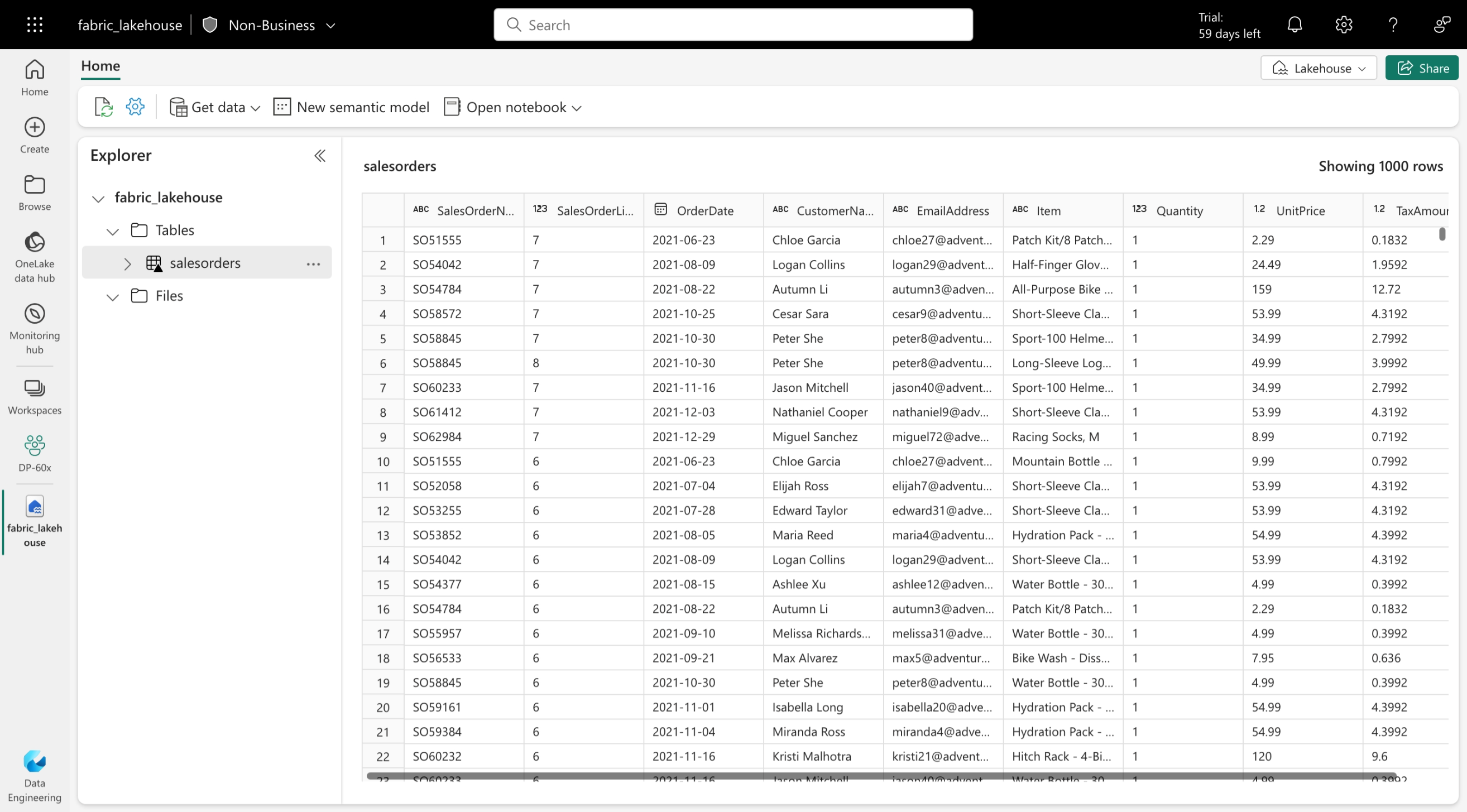
    Delta Lake is an open-source storage layer that adds relational database semantics to Spark-based data lake processing. Tables in Microsoft Fabric lakehouses are Delta tables, which is signified by the triangular Delta (Δ) icon on tables in the lakehouse user interface.

    Screenshot of the salesorders table viewed in the Lakehouse explorer in Microsoft Fabric.

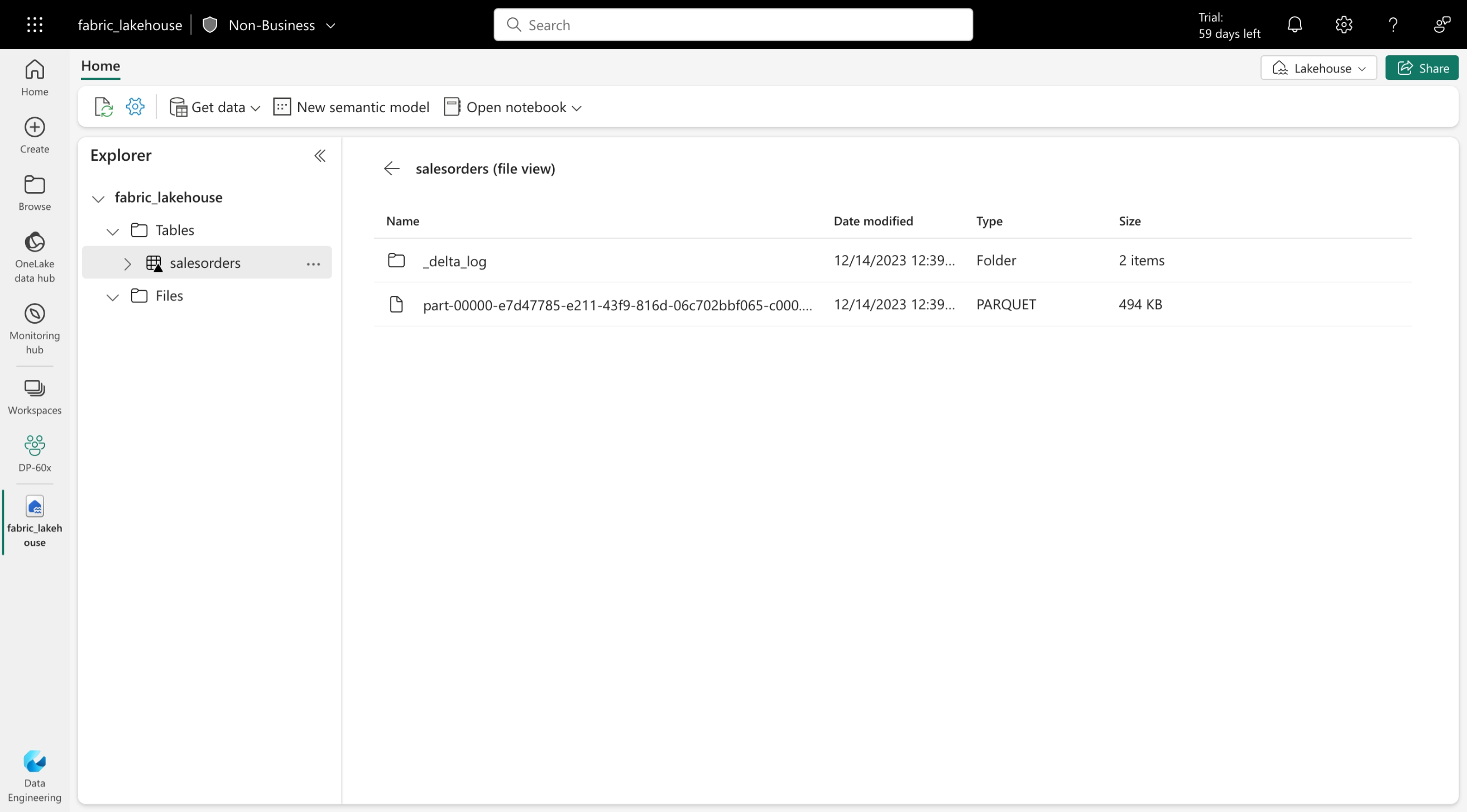
    Delta tables are schema abstractions over data files that are stored in Delta format. For each table, the lakehouse stores a folder containing Parquet data files and a _delta_Log folder in which transaction details are logged in JSON format.

    Screenshot of the files view of the parquet files in the salesorders table viewed through Lakehouse explorer.

    The benefits of using Delta tables include:

    • Relational tables that support querying and data modification. With Apache Spark, you can store data in Delta tables that support CRUD (create, read, update, and delete) operations. In other words, you can selectinsertupdate, and delete rows of data in the same way you would in a relational database system.
    • Support for ACID transactions. Relational databases are designed to support transactional data modifications that provide atomicity (transactions complete as a single unit of work), consistency (transactions leave the database in a consistent state), isolation (in-process transactions can’t interfere with one another), and durability (when a transaction completes, the changes it made are persisted). Delta Lake brings this same transactional support to Spark by implementing a transaction log and enforcing serializable isolation for concurrent operations.
    • Data versioning and time travel. Because all transactions are logged in the transaction log, you can track multiple versions of each table row and even use the time travel feature to retrieve a previous version of a row in a query.
    • Support for batch and streaming data. While most relational databases include tables that store static data, Spark includes native support for streaming data through the Spark Structured Streaming API. Delta Lake tables can be used as both sinks (destinations) and sources for streaming data.
    • Standard formats and interoperability. The underlying data for Delta tables is stored in Parquet format, which is commonly used in data lake ingestion pipelines. Additionally, you can use the SQL analytics endpoint for the Microsoft Fabric lakehouse to query Delta tables in SQL.

    https://lernix.com.my/oracle-cloud-infrastructure-training-courses-malaysia

  • Apply granular permissions

    When the permissions provided by workspace roles or item permissions are insufficient, granular permissions like table and row-level security and file and folder access can be set through the:

    • SQL analytics endpoint
    • OneLake data access roles (preview)
    • Warehouse
    • Semantic model

    Configure data access through the SQL analytics endpoint in a lakehouse

    Data in a lakehouse can be read through the SQL analytics endpoint. Each Lakehouse has an autogenerated SQL analytics endpoint that can be used to transition between the lake view of the lakehouse and the SQL view of the lakehouse. The lake view supports data engineering and Apache Spark and the SQL view of the same lakehouse allows you to create views, functions, stored procedures and to apply SQL security and object level permissions.

    Data in a Fabric lakehouse is stored with the following folder structure:

    • /Files
    • /Tables

    View the SQL analytics endpoint view of the lakehouse

    The SQL analytics endpoint is used to read data in the /Tables folder of the lakehouse using T-SQL.

    Screenshot of SQL analytics endpoint view.

    Apply granular permissions to the lakehouse using T-SQL

    Using the SQL analytics endpoint, granular T-SQL permissions can be applied to SQL objects using Data Control Language (DCL) commands such as:

    Row-level security, column-level security, and dynamic data masking can also be applied using the SQL analytics endpoint. See:

    Configure data access through the lake view of the lakehouse

    The lake view of the lakehouse is used to read data in the /Tables and /Files folder of the lakehouse.

    Screenshot of files in lakehouse.

    Use OneLake data access roles to secure data

    Workspace and item permissions provide coarse access to data in a lakehouse. To further refine data access, folders in the lake view of the lakehouse can be secured using OneLake data access roles (preview). You can create custom roles within a lakehouse and grant read permissions only to specific folders in OneLake. Folder security is inheritable to all subfolders. To create a custom OneLake data access role:

    1. Select Manage OneLake data access (preview) from the menu in the lake view of the lakehouse. 
    2. In the New Role window, create a new role name and select the folders to grant access to.
    3. Once the role is created, assign a user or group to the role and select the permissions to assign.

     Tip

    For more information on how OneLake RBAC permissions are evaluated with workspace and item permissions, see: How OneLake RBAC permissions are evaluated with Fabric permissions

    Configure granular warehouse permissions

    Granular permissions can be applied to warehouses using the SQL analytics endpoint, similar to the way the endpoint is used for the lakehouse. The same permissions can be applied: GRANT, REVOKE, and DENY and row-level security, column-level security, and dynamic data masking.

    Screenshot of warehouse granular permissions.

    Configure Semantic model permissions

    A user’s role in a workspace implicitly grants them permission on the semantic models in a workspace. Semantic models allow for security to be defined using DAX. More granular permission can be applied using row-level security (RLS). To learn more about the managing RLS or permissions on the semantic model see:

    https://lernix.com.my/dell-emc-training-courses-malaysia

  • Configure workspace and item permissions

    Workspaces are environments where users can collaborate to create groups of items. Items are the resources you can work with in Fabric such as lakehouses, warehouses, and reports. Workspace roles are preconfigured sets of permissions that let you manage what users can do and access in a Fabric workspace.

    Item permissions control access to individual Fabric items within a workspace. Item permissions let you either adjust the permissions set by a workspace role or give a user access to one or more items within a workspace without adding the user to a workspace role.

    Let’s consider some scenarios where you would need to configure data access using workspace roles and item permissions.

    Understand workspace roles

    Suppose you work at a health care company as the Fabric security admin. You need to set up access for a new data engineer. The data engineer needs the ability to:

    • Create Fabric items in an existing workspace
    • Read all data in an existing lakehouse that’s in the same workspace where they can create Fabric items

    Workspace roles control what users can do and access within a Fabric workspace. There are four workspace roles and they apply to all items within a workspace. Workspace roles can be assigned to individuals, security groups, Microsoft 365 groups, and distribution lists. Users can be assigned to the following roles:

    • Admin – Can view, modify, share, and manage all content and data in the workspace, and manage permissions.
    • Member – Can view, modify, and share all content and data in the workspace.
    • Contributor – Can view and modify all content and data in the workspace.
    • Viewer – Can view all content and data in the workspace, but can’t modify it.

     Tip

    For a full list of the permissions associated with workspace roles, see: Roles in workspaces

    To meet the access requirements for the new data engineer, you can assign them the workspace Contributor role. This gives them access to modify content in the workspace, including creating Fabric items like lakehouses. The contributor role would also allow them to read data in the existing lakehouse.

    Assign workspace roles

    Users can be added to workspace roles from the Manage access button from within a workspace. Add a user by entering the user’s name and selecting the workspace role to assign them in the Add people dialogue.

    Screenshot of clicking the manage access button.

    Configure item permissions

    Item permissions control access to individual Fabric items within a workspace. Item permission can be used to give a user access to one or more items within a workspace without adding the user to a workspace role or can be used with workspace roles.

    Suppose that after a few months of having Contributor access on a workspace, a data engineer no longer needs to create Fabric items and now only needs to view a single lakehouse and read data in it.

    Since the engineer no longer needs to view all items in the workspace, the Contributor workspace role can be removed and item permissions on the lakehouse can be configured so the engineer will only be able to see the lakehouse metadata and data and nothing else in the workspace. This item access configuration helps you adhere to the principle of least privilege, where the engineer only has access to what’s needed to perform their job duties.

    An item can be shared and item permissions can be configured by selecting on the ellipsis (…) next to a Fabric item in a workspace and then selecting Manage permissions.

    Screenshot of configuring item permissions.

    In the Grant people access window that appears after selecting Manage permissions, if you add the user and don’t select any of the checkboxes under Additional permissions, the user will have read access to the lakehouse metadata. The user won’t have access to the underlying data in the lakehouse. To grant the engineer the ability to read data and not just metadata, Read all SQL endpoint data or Read all Apache Spark can be selected.

    Screenshot of grant people lakehouse read all access.

    https://lernix.com.my/hadoop-training-courses-malaysia

  • Understand the Fabric security model

    Data access in organizations is often restricted by users’ responsibilities, and roles and by an organization’s Fabric deployment patterns, and data architecture. Fabric has a flexible, multi-layer security model that allows you to configure security to accommodate different data access requirements. Having the ability to control permissions at different layers means you can adhere to the principle of least privilege, restricting user permissions to only what’s needed to perform job tasks.

    Fabric has three security levels and they’re evaluated sequentially to determine whether a user has data access. The order of evaluation for access is:

    1. Microsoft Entra ID authentication: checks if the user can authenticate to the Azure identity and access management service, Microsoft Entra ID.
    2. Fabric access: checks if the user can access Fabric.
    3. Data security: checks if the user can perform the action they’ve requested on a table or file.

    The third level, data security, has several building blocks that can be configured individually or together to align with different access requirements. The primary access controls in Fabric are:

    • Workspace roles
    • Item permissions
    • Compute or granular permissions
    • OneLake data access controls (preview)

    It’s helpful to envision these building blocks in a hierarchy to understand how access controls can be applied individually or together.

    Screenshot of Fabric access control hierarchy.

    workspace in Fabric enables you to distribute ownership and access policies using workspace roles. Within a workspace, you can create Fabric data items like lakehouses, data warehouses, and semantic models. Item permissions can be inherited from a workspace role or set individually by sharing an item. When workspace roles provide too much access, items can be shared using item permissions to ensure proper security.

    Within each data item, granular engine permissions such as Read, ReadData, or ReadAll can be applied.

    Compute or granular permissions can be applied within a specific compute engine in Fabric, like the SQL Endpoint or semantic model.

    Fabric data items store their data in OneLake. Access to data in the lakehouse can be restricted to specific files or folders using the role-based-access control (RBAC) feature called OneLake data access controls (preview).

    https://lernix.com.my/citrix-training-courses-malaysia

  • Take action with Microsoft Fabric Activator

    When monitoring surfaces changing data, anomalies, or critical events, alerts are generated or actions are triggered. Real-time data analytics is commonly based on the ingestion and processing of a data stream that consists of a perpetual series of data, typically related to specific point-in-time events. For example, a stream of data from an environmental IoT weather sensor. Real-Time Intelligence in Fabric contains a tool called Activator that can be used to trigger actions on streaming data. For example, a stream of data from an environmental IoT weather sensor might be used to trigger emails to sailors when wind thresholds are met. When certain conditions or logic is met, an action is taken, like alerting users, executing Fabric job items like a pipeline, or kicking off Power Automate workflows. The logic can be either a defined threshold, a pattern like events happening repeatedly over a time period, or the results of logic defined by a Kusto Query Language (KQL) query.

    What is Activator

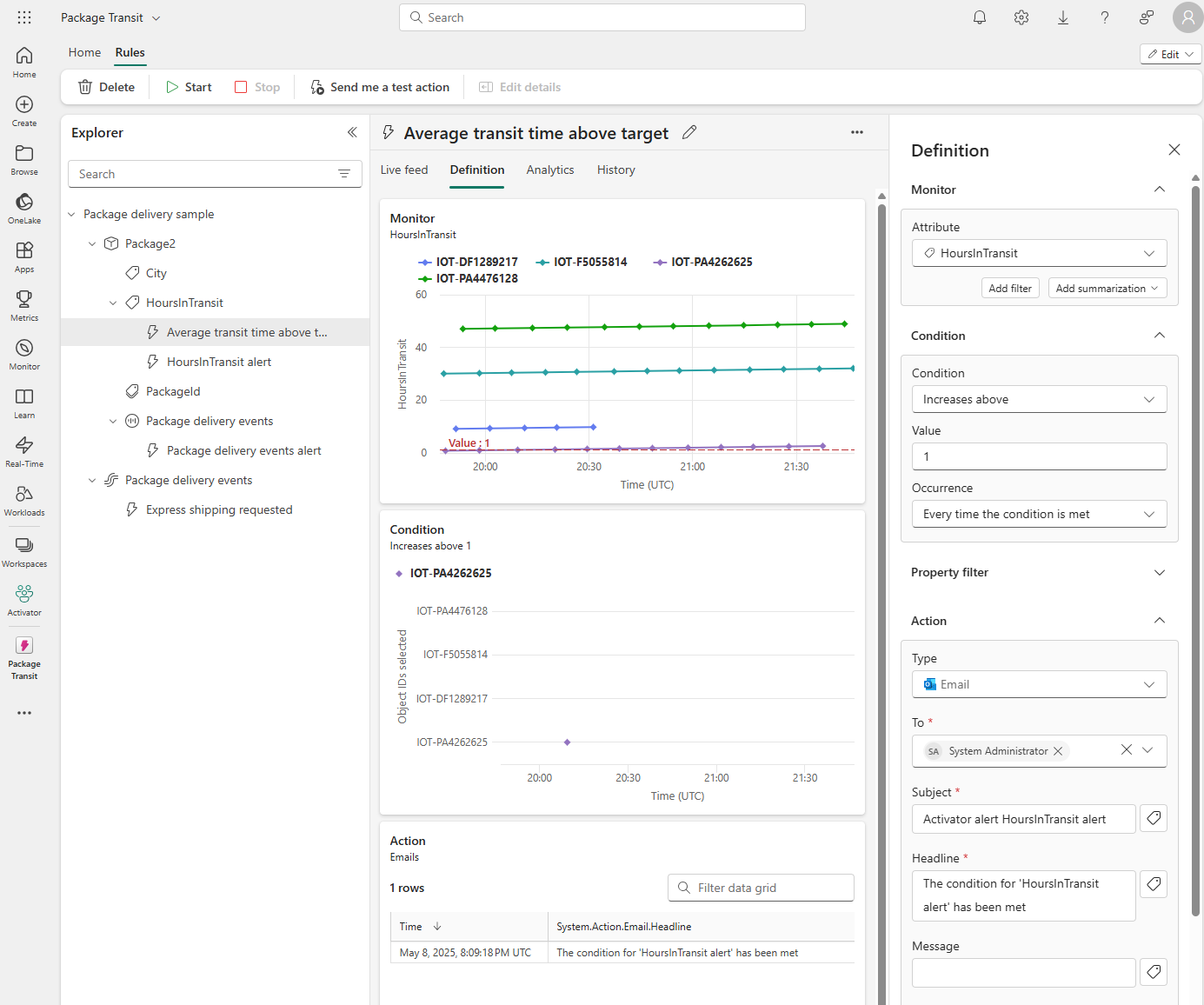
    Activator is a technology in Microsoft Fabric that enables automated processing of events that trigger actions. For example, you can use Activator to notify you by email when a value in an eventstream deviates from a specific range or to run a notebook to perform some Spark-based data processing logic when a real-time dashboard is updated.

    Screenshot of an Activator alert in Microsoft Fabric.

    Understand Activator key concepts

    Activator operates based on four core concepts: Events, *Objects, Properties, and Rules.

    • Events - Each record in a stream of data represents an event that has occurred at a specific point in time.
    • Objects - The data in an event record can be used to represent an object, such as a sales order, a sensor, or some other business entity.
    • Properties – The fields in the event data can be mapped to properties of the business object, representing some aspect of its state. For example, a total_amount field might represent a sales order total, or a temperature field might represent the temperature measured by an environmental sensor.
    • Rules – The key to using Activator to automate actions based on events is to define rules that set conditions under which an action is triggered based on the property values of objects referenced in events. For example, you might define a rule that sends an email to a maintenance manager if the temperature measured by a sensor exceeds a specific threshold.

    Use cases for Activator

    Activator can help you in various scenarios, such as dynamic inventory management, real-time customer engagement, and effective resource allocation in cloud environments. It’s a potent tool for any circumstance that requires real-time data analysis and actions.

    Use Activator to:

    • Initiate marketing actions when product sales drop.
    • Send notifications when temperature changes could affect perishable goods.
    • Flag real-time issues affecting the user experience on apps and websites.
    • Trigger alerts when a shipment hasn’t been updated within an expected time frame.
    • Send alerts when a customer’s account balance crosses a certain threshold.
    • Respond to anomalies or failures in data processing workflows immediately.
    • Run ads when same-store sales decline.
    • Alert store managers to move food from failing grocery store freezers before it spoils.

    https://lernix.com.my/citrix-certification-malaysia

  • Use Microsoft Fabric Monitor Hub

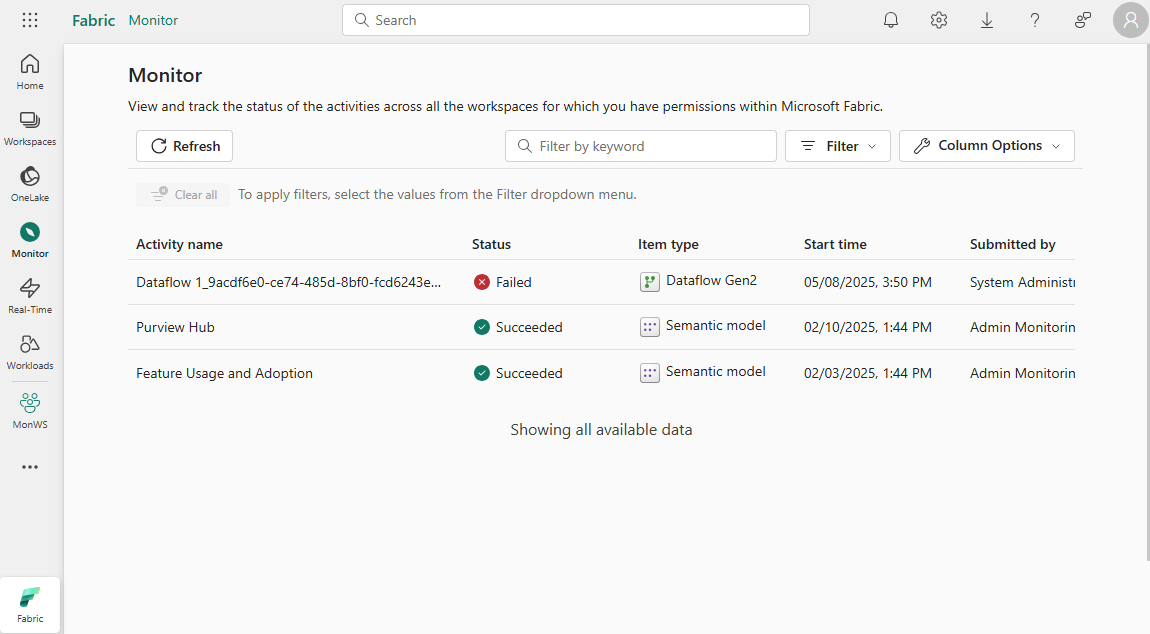
    Visualization tools make monitoring easier. They help you identify trends or anomalies. Monitor hub is the monitoring visualization tool in Microsoft Fabric. Monitor hub collects and aggregates data from selected Fabric items and processes. It stores Fabric activity data in a common interface so you can view the status of multiple different data integration, transformation, movement, and analysis activities in Fabric in one place, rather than monitor each separately.

    Activities displayed in the Monitor hub

    Some of the activities you can see monitoring metadata for in the Microsoft Fabric Monitor hub include:

    • Data pipeline execution history
    • Dataflow executions
    • Datamart and semantic model refreshes
    • Spark job and notebook execution history and job details

    View the Monitor Hub

    The Monitor hub can be opened by selecting Monitor from the Fabric navigation pane.

    Screenshot of the Microsoft Fabric Monitor hub interface.

    View Fabric activity detail

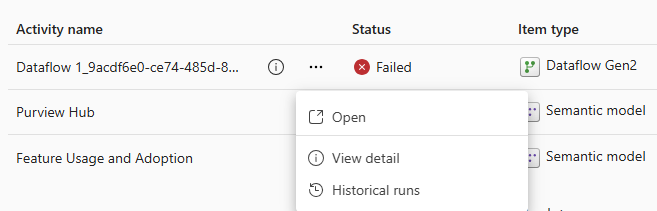
    Each activity in Monitor hub can be selected and several actions can be performed for the selected activity. Actions vary by activity and include options such as: opening the activity, retrying it, viewing activity details or historical runs. To view this information, select the ellipsis that appears when you hover over an activity.

    Screenshot of the Microsoft Fabric Monitor hub details interface.

    When you select View detail, the screen that appears is customized for the activity you select and provides clarity about what happened during the activity. You can view metadata such as:

    • Activity status
    • Start and end time
    • Duration

    https://lernix.com.my/cisco-certification-training-courses-malaysia