Category: Uncategorized

  • Create a RAG-based client application

    When you’ve created an Azure AI Search index for your contextual data, you can use it with an OpenAI model. To ground prompts with data from your index, the Azure OpenAI SDK supports extending the request with connection details for the index.

    The following Python code example shows how to implement this pattern.

    PythonCopy

    from openai import AzureOpenAI
    
    # Get an Azure OpenAI chat client
    chat_client = AzureOpenAI(
        api_version = "2024-12-01-preview",
        azure_endpoint = open_ai_endpoint,
        api_key = open_ai_key
    )
    
    # Initialize prompt with system message
    prompt = [
        {"role": "system", "content": "You are a helpful AI assistant."}
    ]
    
    # Add a user input message to the prompt
    input_text = input("Enter a question: ")
    prompt.append({"role": "user", "content": input_text})
    
    # Additional parameters to apply RAG pattern using the AI Search index
    rag_params = {
        "data_sources": [
            {
                "type": "azure_search",
                "parameters": {
                    "endpoint": search_url,
                    "index_name": "index_name",
                    "authentication": {
                        "type": "api_key",
                        "key": search_key,
                    }
                }
            }
        ],
    }
    
    # Submit the prompt with the index information
    response = chat_client.chat.completions.create(
        model="<model_deployment_name>",
        messages=prompt,
        extra_body=rag_params
    )
    
    # Print the contextualized response
    completion = response.choices[0].message.content
    print(completion)
    

    In this example, the search against the index is keyword-based – in other words, the query consists of the text in the user prompt, which is matched to text in the indexed documents. When using an index that supports it, an alternative approach is to use a vector-based query in which the index and the query use numeric vectors to represent text tokens. Searching with vectors enables matching based on semantic similarity as well as literal text matches.

    To use a vector-based query, you can modify the specification of the Azure AI Search data source details to include an embedding model; which is then used to vectorize the query text.

    PythonCopy

    rag_params = {
        "data_sources": [
            {
                "type": "azure_search",
                "parameters": {
                    "endpoint": search_url,
                    "index_name": "index_name",
                    "authentication": {
                        "type": "api_key",
                        "key": search_key,
                    },
                    # Params for vector-based query
                    "query_type": "vector",
                    "embedding_dependency": {
                        "type": "deployment_name",
                        "deployment_name": "<embedding_model_deployment_name>",
                    },
                }
            }
        ],
    }
    

    https://lernix.com.my/red-hat-enterprise-linux-rhel-training-courses-malaysia

  • Make your data searchable

    When you want to create an agent that uses your own data to generate accurate answers, you need to be able to search your data efficiently. When you build an agent with the Azure AI Foundry, you can use the integration with Azure AI Search to retrieve the relevant context in your chat flow.

    Azure AI Search is a retriever that you can include when building a language model application with prompt flow. Azure AI Search allows you to bring your own data, index your data, and query the index to retrieve any information you need.

    Diagram showing an index being queried to retrieve grounding data.

    Using a vector index

    While a text-based index will improve search efficiency, you can usually achieve a better data retrieval solution by using a vector-based index that contains embeddings that represent the text tokens in your data source.

    An embedding is a special format of data representation that a search engine can use to easily find the relevant information. More specifically, an embedding is a vector of floating-point numbers.

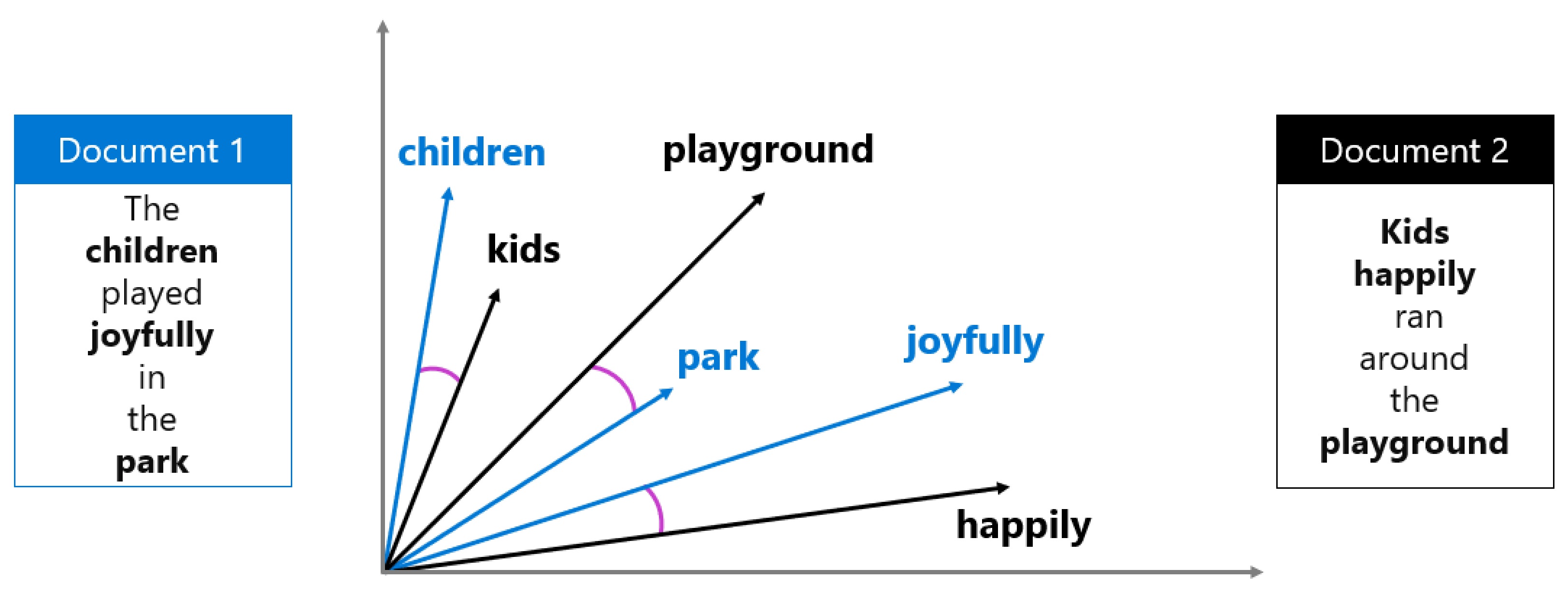
    For example, imagine you have two documents with the following contents:

    • “The children played joyfully in the park.”
    • “Kids happily ran around the playground.”

    These two documents contain texts that are semantically related, even though different words are used. By creating vector embeddings for the text in the documents, the relation between the words in the text can be mathematically calculated.

    Imagine the keywords being extracted from the document and plotted as a vector in a multidimensional space:

    Diagram of vector embeddings.

    The distance between vectors can be calculated by measuring the cosine of the angle between two vectors, also known as the cosine similarity. In other words, the cosine similarity computes the semantic similarity between documents and a query.

    By representing words and their meanings with vectors, you can extract relevant context from your data source even when your data is stored in different formats (text or image) and languages.

    When you want to be able to use vector search to search your data, you need to create embeddings when creating your search index. To create embeddings for your search index, you can use an Azure OpenAI embedding model available in Azure AI Foundry.

    Diagram showing a vector index that contains embeddings.

     Tip

    Learn more about embeddings in the Azure OpenAI in Foundry Models.

    Creating a search index

    In Azure AI Search, a search index describes how your content is organized to make it searchable. Imagine a library containing many books. You want to be able to search through the library and retrieve the relevant book easily and efficiently. To make the library searchable, you create a catalog that contains any relevant data about books to make any book easy to find. A library’s catalog serves as the search index.

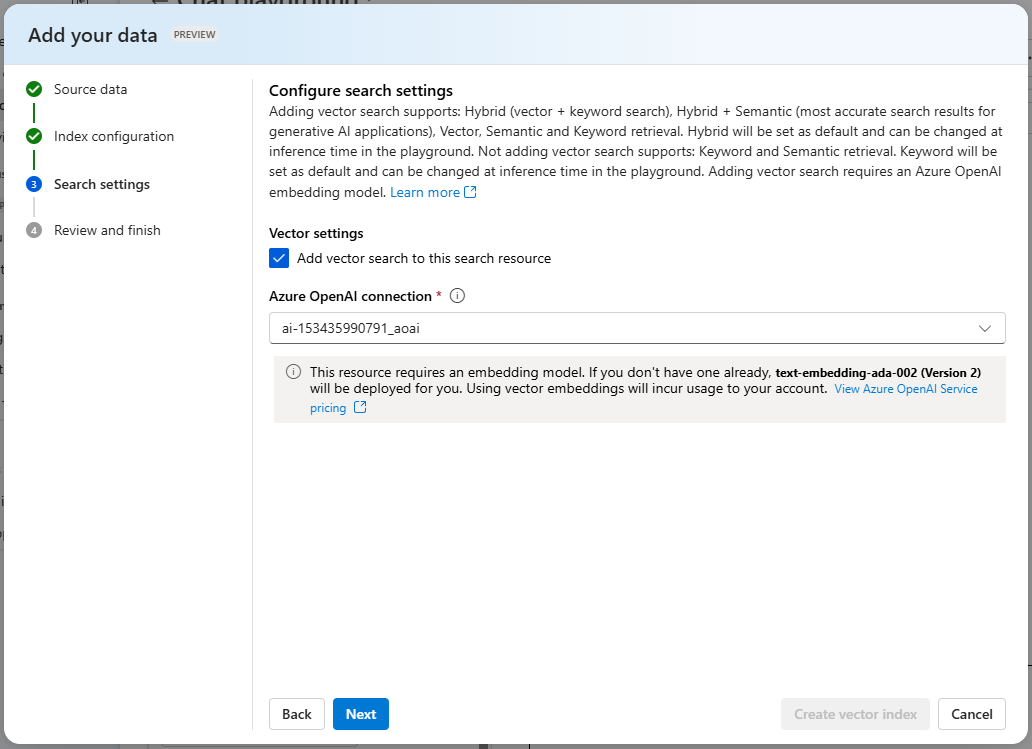
    Though there are different approaches to creating an index, the integration of Azure AI Search in Azure AI Foundry makes it easy for you to create an index that is suitable for language models. You can add your data to Azure AI Foundry, after which you can use Azure AI Search to create an index in the Azure AI Foundry portal using an embedding model. The index asset is stored in Azure AI Search and queried by Azure AI Foundry when used in a chat flow.

    Screenshot of creating an index in Azure AI Foundry.

    How you configure your search index depends on the data you have and the context you want your language model to use. For example, keyword search enables you to retrieve information that exactly matches the search query. Semantic search already takes it one step further by retrieving information that matches the meaning of the query instead of the exact keyword, using semantic models. Currently, the most advanced technique is vector search, which creates embeddings to represent your data.

     Tip

    Learn more about vector search.

    Searching an index

    There are several ways that information can be queried in an index:

    • Keyword search: Identifies relevant documents or passages based on specific keywords or terms provided as input.
    • Semantic search: Retrieves documents or passages by understanding the meaning of the query and matching it with semantically related content rather than relying solely on exact keyword matches.
    • Vector search: Uses mathematical representations of text (vectors) to find similar documents or passages based on their semantic meaning or context.
    • Hybrid search: Combines any or all of the other search techniques. Queries are executed in parallel and are returned in a unified result set.

    When you create a search index in Azure AI Foundry, you’re guided to configuring an index that is most suitable to use in combination with a language model. When your search results are used in a generative AI application, hybrid search gives the most accurate results.

    Hybrid search is a combination of keyword (and full text), and vector search, to which semantic ranking is optionally added. When you create an index that is compatible with hybrid search, the retrieved information is precise when exact matches are available (using keywords), and still relevant when only conceptually similar information can be found (using vector search).

    https://lernix.com.my/red-hat-linux-administration-training-courses-malaysia

  • Understand how to ground your language model

    Language models excel in generating engaging text, and are ideal as the base for agents. Agents provide users with an intuitive chat-based application to receive assistance in their work. When designing an agent for a specific use case, you want to ensure your language model is grounded and uses factual information that is relevant to what the user needs.

    Though language models are trained on a vast amount of data, they may not have access to the knowledge you want to make available to your users. To ensure that an agent is grounded on specific data to provide accurate and domain-specific responses, you can use Retrieval Augmented Generation (RAG).

    Understanding RAG

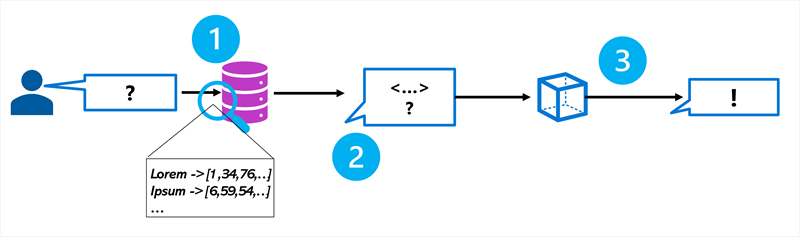
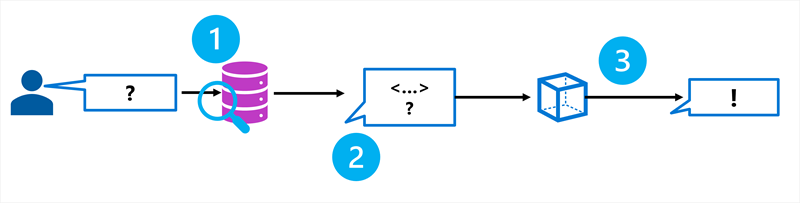
    RAG is a technique that you can use to ground a language model. In other words, it’s a process for retrieving information that is relevant to the user’s initial prompt. In general terms, the RAG pattern incorporates the following steps:

    Diagram of the retrieval augmented generation pattern.
    1. Retrieve grounding data based on the initial user-entered prompt.
    2. Augment the prompt with grounding data.
    3. Use a language model to generate a grounded response.

    By retrieving context from a specified data source, you ensure that the language model uses relevant information when responding, instead of relying on its training data.

    Using RAG is a powerful and easy-to-use technique for many cases in which you want to ground your language model and improve the factual accuracy of your generative AI app’s responses.

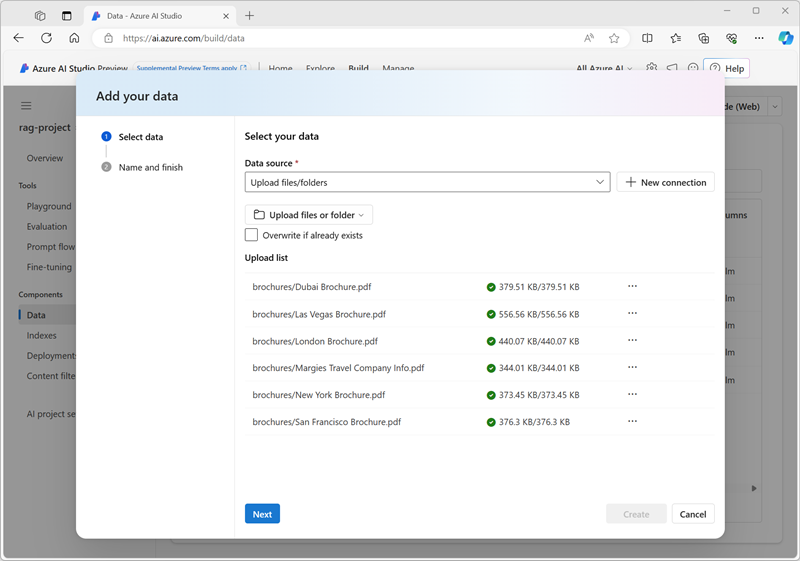
    Adding grounding data to an Azure AI project

    You can use Azure AI Foundry to build a custom age that uses your own data to ground prompts. Azure AI Foundry supports a range of data connections that you can use to add data to a project, including:

    • Azure Blob Storage
    • Azure Data Lake Storage Gen2
    • Microsoft OneLake

    You can also upload files or folders to the storage used by your AI Foundry project.

    Screenshot of the Add Data dialog in Azure AI Foundry portal.

    https://lernix.com.my/red-hat-linux-certification-malaysia

  • Set up, configure, and troubleshoot GitHub Copilot

    This unit explains how to sign up for GitHub Copilot, how to configure GitHub Copilot by using VS Code, and how to troubleshoot GitHub Copilot by using VS Code.

    Sign up for GitHub Copilot

    Before you can start using GitHub Copilot, you need to set up a free trial or subscription for your account.

    To get started, select your GitHub profile photo, and then select Settings. Copilot is on the left menu under Code, planning, and automation.

    After you sign up, you need to install an extension for your preferred environment. GitHub Copilot supports GitHub.com (which doesn’t need an extension), VS Code, Visual Studio, JetBrains IDEs, and Neovim as an unobtrusive extension.

    For this module, you’ll just review extensions and configurations for VS Code. The exercise that you’ll complete in the next unit uses VS Code.

    If you’re using a different environment, you can find specific links to set up other environments in the “References” section at the end of this module.

    Configure GitHub Copilot in VS Code

    Add the VS Code extension for GitHub Copilot

    1. In Visual Studio Marketplace, go to the GitHub Copilot extension page and select Install.
    2. A popup dialog asks you to open VS Code. Select Open.
    3. In VS Code, on the Extension: GitHub Copilot tab, select Install.
    4. If you didn’t previously authorize VS Code in your GitHub account, you’re prompted to sign in to GitHub in VS Code. Select Sign in to GitHub.

    GitHub Copilot can autocomplete code as you type when you use VS Code. After installation, you can enable or disable GitHub Copilot, and you can configure advanced settings within VS Code.

    Enable or disable GitHub Copilot in VS Code

    1. On the bottom pane of the VS Code window, select the status icon, and then select Enable or Disable.Screenshot of the status icon for GitHub Copilot in Visual Studio Code. When GitHub Copilot is enabled, the background color matches the color of the status bar.
    2. When you’re disabling GitHub Copilot, VS Code asks whether you want to disable completions globally or for the language of the file that you’re currently editing.
      • To disable GitHub Copilot completions globally, select Disable completions.
      • To disable GitHub Copilot completions for a specified language, select Disable completions for LANGUAGE.

    Enable or disable inline suggestions in VS Code

    1. On the File menu, select Preferences > Settings.Screenshot of the File menu in Visual Studio Code. The Preferences dropdown submenu is open with the Settings command selected.
    2. On the left-side pane of the Settings tab, select Extensions, and then select GitHub Copilot.
    3. Under Editor: Enable Auto Completions, select or clear the checkbox to enable or disable inline suggestions.

    Additionally, you can choose to enable or disable inline suggestions and specify for which languages you want to enable or disable GitHub Copilot.

    Troubleshoot GitHub Copilot in VS Code

    In VS Code, the log files are useful for diagnosing connection problems. The GitHub Copilot extension stores the log files in the standard log location for VS Code extensions. You can find the log files by opening the command palette and then entering either Developer: Open Log File or Developer: Open Extensions Logs Folder.

    In rare cases, errors might not be logged in the regular locations. If you encounter errors and nothing is in the logs, you might try to view the logs from the process that’s running VS Code and the extension. This process enables you to view the Electron logs. You can find these logs by selecting Help > Toggle Developer Tools in VS Code.

    Network restrictions, firewalls, or your proxy might cause problems when you’re connecting to GitHub Copilot. If a problem occurs, use the following steps to open a new editor with the relevant information that you can inspect yourself or share with the support team:

    1. Open the VS Code command palette, and then:
      • For Mac, use Shift+Command+P.
      • For Windows or Linux, use Ctrl+Shift+P.
    2. Enter Diagnostics, and then select GitHub Copilot: Collect Diagnostics from the list.

    For more information on how to troubleshoot in other environments, check out the “References” section at the end of this module.

    https://lernix.com.my/sap-erp-procurement-material-management-training-courses-malaysia

  • Interact with Copilot

    This unit explores ways that you can maximize your interaction with GitHub Copilot in your development environment. By understanding the service’s features and capabilities, you learn how to use it effectively.

    The following sections describe the various ways to trigger and use GitHub Copilot, along with examples and shortcuts to help you get the most out of it.

    Inline suggestions

    Inline suggestions are the most immediate form of assistance in Copilot. As you type, Copilot analyzes your code and context to offer real-time code completions. This feature predicts what you might want to write next and displays suggestions in a subtle, unobtrusive way.

    The suggestions that Copilot offers appear as grayed-out text ahead of your cursor.

    • To accept a suggestion, select the Tab key or the > (right arrow) key.
    • To reject a suggestion, keep typing or select the Esc key.

    Inline suggestions are especially useful when you’re working on repetitive tasks or you need quick boilerplate code.

    Here’s an example:

    PythonCopy

    def calculate_average(numbers):
        # Start typing here and watch Copilot suggest the function body
    

    Command palette

    The command palette provides quick access to the various functions in Copilot, so you can perform complex tasks with only a few keystrokes.

    1. Open the command palette in Visual Studio Code by selecting Ctrl+Shift+P (Windows or Linux) or Cmd+Shift+P (Mac).
    2. Enter Copilot to see available commands.
    3. Select actions like Explain This or Generate Unit Tests to get assistance.

    Copilot chat

    Copilot chat is an interactive feature that enables you to communicate with Copilot by using natural language. You can ask questions or request code snippets, and Copilot provides responses based on your input.

    1. Open the Copilot chat panel in your IDE.
    2. Enter questions or requests in natural language, and then evaluate the Copilot response.

    For example, you might enter: “How do I implement a binary search in Python?” Copilot chat is ideal for exploring new coding concepts or getting help with unfamiliar syntax.

    Copilot might respond with:

    PythonCopy

    def binary_search(arr, target):
        left, right = 0, len(arr) - 1
        while left <= right:
            mid = (left + right) // 2
            if arr[mid] == target:
                return mid
            elif arr[mid] < target:
                left = mid + 1
            else:
                right = mid - 1
        return -1
    

    Inline chat

    Inline chat enables context-specific conversations with Copilot directly within your code editor. You can use this feature to request code modifications or explanations without switching contexts.

    1. Place your cursor where you want assistance.
    2. Use the keyboard shortcut Ctrl+I (Windows or Linux) or Cmd+I (Mac) to open inline chat.
    3. Ask questions or request changes specific to that code location.

    Inline chat helps you focus on a specific section of your code and receive targeted advice. Additionally, you can utilize slash commands for more efficient interaction.

    Slash commands are shortcuts that allow you to quickly perform actions in Copilot. These commands provide a convenient way to interact with Copilot without needing to navigate through menus.

    Here are some common slash commands and their usage:

    • /explain – Provides an explanation of the selected code.
    • /suggest – Offers code suggestions based on the current context.
    • /tests – Generates unit tests for the selected function or class.
    • /comment – Converts comments into code snippets.

    To use a slash command, just type the command in your editor and press Enter. For example:

    PythonCopy

    # Select the function, use the shortcut to open the inline chat, and type: /explain
    def calculate_average(numbers):
    

    Comments to code

    Copilot uses natural language processing to convert comments into code. You can describe the functionality that you want in a comment. When you select the Enter key, Copilot generates code based on your description.

    Here’s an example:

    PythonCopy

    # Function to reverse a string
    def reverse_string(s):
        # Copilot suggests the function body here
    

    PythonCopy

    ## Function to reverse a string
    def reverse_string(s):
        return s[::-1]
    

    This approach is beneficial for drafting code quickly, especially when your task is straightforward.

    Multiple suggestions

    For complex code snippets, Copilot can offer multiple alternatives.

    1. When Copilot offers a suggestion, look for the light bulb icon.
    2. Select the icon or use Alt+] (Windows/Linux) or Option+] (Mac) to cycle through alternatives.

    Multiple suggestions help you explore different coding approaches and select the most appropriate one.

    Explanations

    Understanding existing code is crucial, especially in large projects. You can use the Explain This feature to get explanations for code snippets.

    1. Select a block of code.
    2. Right-click the code block, and then select Copilot: Explain This on the shortcut menu.
    3. Read the explanation that Copilot provides for the selected code.

    This feature is useful for learning purposes and when you’re reviewing code that someone else wrote.

    Automated test generation

    Unit tests are essential for ensuring code quality and reliability. Copilot can save you time and effort by generating unit tests for your functions or classes.

    1. Select a function or class.
    2. Use the command palette to select Copilot: Generate Unit Tests.
    3. Review the test cases that Copilot suggests for your code.

    Here’s an example:

    PythonCopy

    def add(a, b):
        return a + b
    
    # Copilot might generate a test like this:
    def test_add():
        assert add(2, 3) == 5
        assert add(-1, 1) == 0
        assert add(0, 0) == 0
    

    Automated test generation helps you maintain code integrity and catch bugs early in the development process.

    Keep in mind that Copilot learns from context. Keeping your code well structured and commented helps Copilot provide more accurate and relevant assistance. The more you interact with Copilot, the better it becomes at understanding your coding style and preferences.

    https://lernix.com.my/sap-erp-pp-production-planning-training-courses-malaysia
  • GitHub Copilot, your AI pair programmer

    It’s no secret that AI is disrupting the technology industry. AI is shaping how development teams work and build software. These advancements in AI can enhance the productivity of developers around the world.

    The addition of AI features to the developer tools that you use and love helps you collaborate, develop, test, and ship your products faster and more efficiently than ever before. GitHub Copilot is a service that provides you with an AI pair programmer that works with all of the popular programming languages.

    In recent research, GitHub and Microsoft found that developers experience a significant productivity boost when they use GitHub Copilot to work on real-world projects and tasks. In fact, in the three years since its launch, developers have experienced the following benefits while using GitHub Copilot:

    • 46% of new code now written by AI
    • 55% faster overall developer productivity
    • 74% of developers feeling more focused on satisfying work

    Microsoft developed GitHub Copilot in collaboration with OpenAI. GitHub Copilot is powered by the OpenAI Codex system. OpenAI Codex has broad knowledge of how people use code and is more capable than GPT-3 in code generation. OpenAI Codex is more capable, in part, because it was trained on a dataset that included a larger concentration of public source code.

    GitHub Copilot is available as an extension for VS Code, Visual Studio, Vim/Neovim, and the JetBrains suite of IDEs.

    GitHub Copilot features

    GitHub Copilot started an AI pair programmer that keeps developers in the flow by autocompleting comments and code. But AI-powered autocompletion was just the starting point.

    Here are some features of GitHub Copilot that truly make it a modern developer tool. With these features, GitHub Copilot is more than just an editor. It’s becoming a readily accessible AI assistant throughout the entire development life cycle.

    Copilot for chat

    GitHub Copilot brings a ChatGPT-like chat interface to the editor. The chat interface focuses on developer scenarios and natively integrates with VS Code and Visual Studio. It’s deeply embedded in the IDE, and it recognizes what code a developer has typed and what error messages appear. A developer can get in-depth analysis and explanations of what code blocks are intended to do, generate unit tests, and even get proposed fixes to bugs.

    Copilot for pull requests

    OpenAI’s GPT-4 model adds support in GitHub Copilot for AI-powered tags in pull-request descriptions through a GitHub app that organization admins and individual repository owners can install. GitHub Copilot automatically fills out these tags based on the changed code. Developers can then review or modify the suggested descriptions.

    Copilot for the CLI

    Next to the editor and pull requests, the terminal is the place where developers spend the most time. However, even the most proficient developers need to scroll through many pages to remember the precise syntax of many commands. The GitHub Copilot command-line interface (CLI) can compose commands and loops, and it can throw obscure find flags to satisfy your query.

    Subscription plans

    GitHub Copilot is available in several plans, each offering different capabilities for individuals, teams, and organizations.

    GitHub Copilot Free

    GitHub Copilot Free allows individual developers to use GitHub Copilot at no cost. To get started, open Visual Studio Code, click on the GitHub Copilot icon, and then click “Sign in to Use GitHub Copilot for Free”. Log in to your GitHub account in the window that will open in the browser.

    The GitHub Copilot Free tier includes 2000 code completions per month, 50 chat requests per month, and access to both GPT-4o and Claude 3.5 Sonnet models. Learn more.

    Key features:

    • Code completions in supported editors
    • Limited monthly completions and chat requests
    • Access to advanced AI models

    GitHub Copilot Pro

    GitHub Copilot Pro is designed for individual developers who want enhanced capabilities beyond the Free plan.

    Key features:

    • Unlimited code completions and chat requests
    • Priority access to the latest AI models
    • Advanced code suggestions and explanations
    • Integration with supported IDEs (VS Code, Visual Studio, JetBrains, Neovim)
    • Automated test generation and code explanation features

    GitHub Copilot Pro+

    Copilot Pro+ includes all the features of Copilot Pro with additional access to premium model usage and priority performance on high-demand resources. It’s suited for individuals with higher usage needs.

    Key features:

    • All Pro features
    • Additional premium request capacity
    • Priority infrastructure access

    GitHub Copilot Business

    GitHub Copilot Business is for organizations that want to manage Copilot access and benefit from additional security and compliance features.

    Key features:

    • All Pro and Pro+ features for organization members
    • Centralized management and policy controls
    • Security vulnerability filtering
    • Code referencing and public code filtering
    • IP indemnity and enterprise-grade security, safety, and privacy
    • Chat in IDE and mobile
    • Filter for public code

    GitHub Copilot Enterprise

    GitHub Copilot Enterprise is designed for large organizations and enterprises that require advanced capabilities, deeper integration, and enhanced personalization.

    Key features:

    • All Business features
    • Personalized code suggestions based on internal/private code
    • Integration with GitHub Enterprise Cloud
    • AI-powered search and documentation generation across your codebase
    • Enhanced pull request support with AI-powered tags and summaries
    • Organization-wide customization and fine-tuning of Copilot models
    • Deep integration with GitHub for chat and codebase exploration.

    GitHub Copilot Enterprise includes everything in GitHub Copilot Business, plus a layer of personalization for organizations. It provides integration into GitHub as a chat interface, so developers can converse about their codebase. It also provides action buttons throughout the platform.

    GitHub Copilot Enterprise can index an organization’s codebase for a deeper understanding and for suggestions that are more tailored. It offers access to GitHub Copilot customization to fine-tune private models for code completion.

    In the next unit, you’ll learn about how to get started with GitHub Copilot and some common configurations.

    https://lernix.com.my/sap-fico-financial-accounting-training-courses-malaysia

  • Create a chat client

    A common scenario in an AI application is to connect to a generative AI model and use prompts to engage in a chat-based dialog with it.

    While you can use the Azure OpenAI SDK, to connect “directly” to a model using key-based or Microsoft Entra ID authentication; when your model is deployed in an Azure AI Foundry project, you can also use the Azure AI Foundry SDK to retrieve a project client, from which you can then get an authenticated OpenAI chat client for any models deployed in the project’s Azure AI Foundry resource. This approach makes it easy to write code that consumes models deployed in your project, switching between them easily by changing the model deployment name parameter.

     Tip

    You can use the OpenAI chat client provided by an Azure AI Foundry project to chat with any model deployed in the associated Azure AI Foundry resource – even non-OpenAI models, such as Microsoft Phi models.

    The following Python code sample uses the get_openai_client() method to get an OpenAI client with which to chat with a model that has been deployed in the project’a Azure AI Foundry resource.

    PythonCopy

    from azure.identity import DefaultAzureCredential
    from azure.ai.projects import AIProjectClient
    from openai import AzureOpenAI
    
    try:
        
        # connect to the project
        project_endpoint = "https://......"
        project_client = AIProjectClient(            
                credential=DefaultAzureCredential(),
                endpoint=project_endpoint,
            )
        
        # Get a chat client
        chat_client = project_client.get_openai_client(api_version="2024-10-21")
        
        # Get a chat completion based on a user-provided prompt
        user_prompt = input("Enter a question:")
        
        response = chat_client.chat.completions.create(
            model=your_model_deployment_name,
            messages=[
                {"role": "system", "content": "You are a helpful AI assistant."},
                {"role": "user", "content": user_prompt}
            ]
        )
        print(response.choices[0].message.content)
    
    except Exception as ex:
        print(ex)

    https://lernix.com.my/sap-s-4-hana-training-courses-malaysia

  • Work with project connections

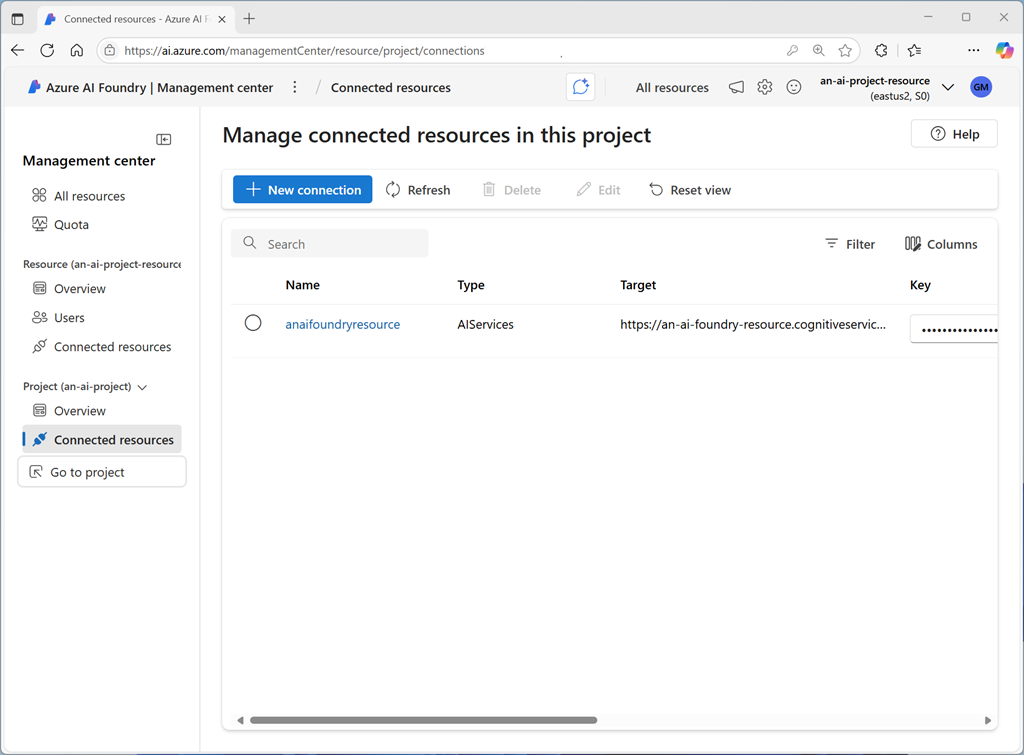
    Each Azure AI Foundry project includes connected resources, which are defined both at the parent (Azure AI Foundry resource or hub) level, and at the project level. Each resource is a connection to an external service, such as Azure storage, Azure AI Search, Azure OpenAI, or another Azure AI Foundry resource.

    Screenshot of the connected resources page in Azure AI Foundry portal.

    With the Azure AI Foundry SDK, you can connect to a project and retrieve connections; which you can then use to consume the connected services.

    For example, the AIProjectClient object in Python has a connections property, which you can use to access the resource connections in the project. Methods of the connections object include:

    • connections.list(): Returns a collection of connection objects, each representing a connection in the project. You can filter the results by specifying an optional connection_type parameter with a valid enumeration, such as ConnectionType.AZURE_OPEN_AI.
    • connections.get(connection_name, include_credentials): Returns a connection object for the connection with the name specified. If the include_credentials parameter is True (the default value), the credentials required to connect to the connection are returned – for example, in the form of an API key for an Azure AI services resource.

    The connection objects returned by these methods include connection-specific properties, including credentials, which you can use to connect to the associated resource.

    The following code example lists all of the resource connections that have been added to a project:

    PythonCopy

    from azure.identity import DefaultAzureCredential
    from azure.ai.projects import AIProjectClient
    
    try:
    
        # Get project client
        project_endpoint = "https://....."
        project_client = AIProjectClient(            
                credential=DefaultAzureCredential(),
                endpoint=project_endpoint,
            )
        
        ## List all connections in the project
        connections = project_client.connections
        print("List all connections:")
        for connection in connections.list():
            print(f"{connection.name} ({connection.type})")
    
    except Exception as ex:
        print(ex)
    

    https://lernix.com.my/sap-supply-chain-management-scm-training-courses-malaysia

  • What is the Azure AI Foundry SDK?

    Azure AI Foundry provides a REST API that you can use to work with AI Foundry projects and the resources they contain. Additionally, multiple language-specific SDKs are available, enabling developers to write code that uses resources in an Azure AI Foundry project in their preferred development language. With an Azure AI Foundry SDK, developers can create applications that connect to a project, access the resource connections and models in that project, and use them to perform AI operations, such as sending prompts to a generative AI model and processing the responses.

    https://lernix.com.my/sap-wm-warehouse-management-training-courses-malaysia

  • Describe the purpose of tags

    As your cloud usage grows, it’s increasingly important to stay organized. A good organization strategy helps you understand your cloud usage and can help you manage costs.

    One way to organize related resources is to place them in their own subscriptions. You can also use resource groups to manage related resources. Resource tags are another way to organize resources. Tags provide extra information, or metadata, about your resources. This metadata is useful for:

    • Resource management Tags enable you to locate and act on resources that are associated with specific workloads, environments, business units, and owners.
    • Cost management and optimization Tags enable you to group resources so that you can report on costs, allocate internal cost centers, track budgets, and forecast estimated cost.
    • Operations management Tags enable you to group resources according to how critical their availability is to your business. This grouping helps you formulate service-level agreements (SLAs). An SLA is an uptime or performance guarantee between you and your users.
    • Security Tags enable you to classify data by its security level, such as public or confidential.
    • Governance and regulatory compliance Tags enable you to identify resources that align with governance or regulatory compliance requirements, such as ISO 27001. Tags can also be part of your standards enforcement efforts. For example, you might require that all resources be tagged with an owner or department name.
    • Workload optimization and automation Tags can help you visualize all of the resources that participate in complex deployments. For example, you might tag a resource with its associated workload or application name and use software such as Azure DevOps to perform automated tasks on those resources.

    How do I manage resource tags?

    You can add, modify, or delete resource tags through Windows PowerShell, the Azure CLI, Azure Resource Manager templates, the REST API, or the Azure portal.

    You can use Azure Policy to enforce tagging rules and conventions. For example, you can require that certain tags be added to new resources as they’re provisioned. You can also define rules that reapply tags that have been removed. Resources don’t inherit tags from subscriptions and resource groups, meaning that you can apply tags at one level and not have those tags automatically show up at a different level, allowing you to create custom tagging schemas that change depending on the level (resource, resource group, subscription, and so on).

    An example tagging structure

    A resource tag consists of a name and a value. You can assign one or more tags to each Azure resource.

    NameValue
    AppNameThe name of the application that the resource is part of.
    CostCenterThe internal cost center code.
    OwnerThe name of the business owner who’s responsible for the resource.
    EnvironmentAn environment name, such as “Prod,” “Dev,” or “Test.”
    ImpactHow important the resource is to business operations, such as “Mission-critical,” “High-impact,” or “Low-impact.”

    Keep in mind that you don’t need to enforce that a specific tag is present on all of your resources. For example, you might decide that only mission-critical resources have the Impact tag. All non-tagged resources would then not be considered as mission-critical.

    https://lernix.com.my/microsoft-sharepoint-certification-training-courses-malaysia